
How to choose a construction plan viewer your crew will actually use
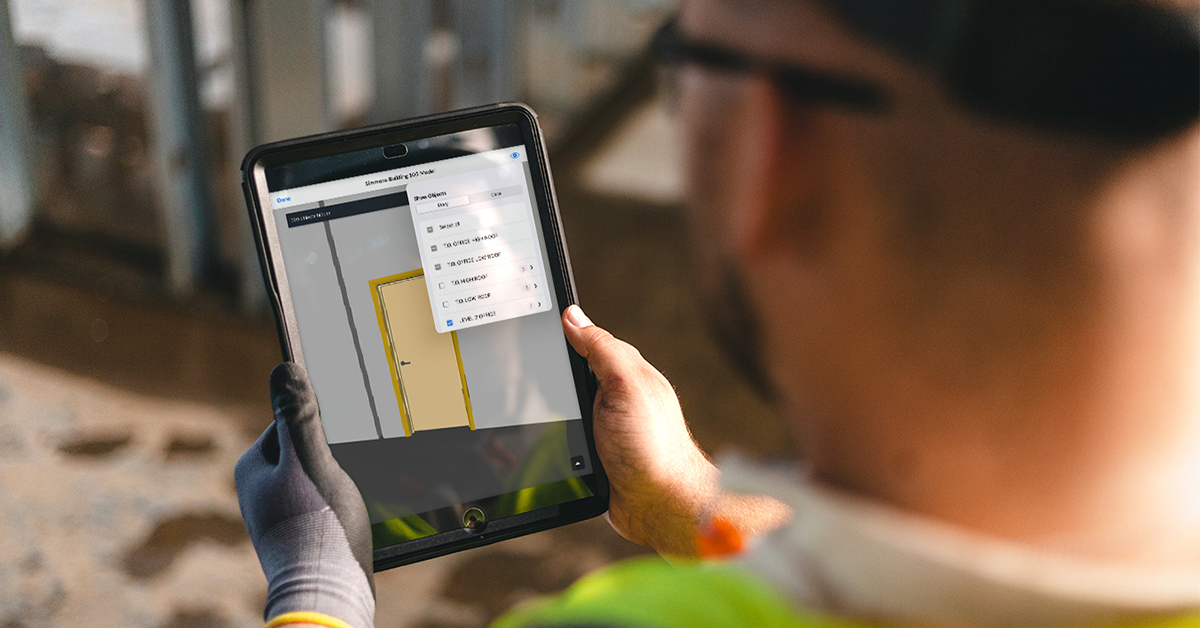
The superintendent gets a call at 7 AM from the concrete foreman: the foundation plan on his tablet doesn't match the markups the engineer sent over last night. The crew is ready to pour, the office is scrambling to figure out which revision is current, and everybody's burning daylight. A construction plan viewer is supposed to prevent exactly this moment.
The catch is that the viewer only prevents it if the crew actually opens the app. If the tool is too clunky to keep current, or takes too many taps to pull up the right sheet, the feature list on the sales page doesn't matter. The crew goes back to paper or screenshots in a group chat, and that workaround creates extra work for the field and the office, because rework can take a meaningful share of project cost when crews build from outdated drawings.
So choosing the right viewer starts with how crews open, update, and trust the drawings in front of them, not with the longest feature list. The rest of this guide walks through what that looks like in practice.
What this article covers:
- A construction plan viewer keeps drawings current, connected, and easier to trust than static PDFs or paper sets.
- Paper plans and screenshot threads cost the field a reliable source of truth and drive avoidable rework.
- Ease of use, offline access, version control, markups, sheet links, integration with field workflows, and pricing are the seven capabilities that decide whether crews will open the app.
- Field adoption goes faster when you start with one crew, show an obvious first win, name a peer for support, and frame the payoff around the user's time.
- A shared current plan set keeps office and field aligned without phone calls and guesswork.
What is a construction plan viewer?
A construction plan viewer is software that lets field crews and office staff open, mark up, and manage construction drawings from phones, tablets, and computers. That definition sounds simple, but in practice the tool goes well beyond displaying a file. A plan viewer organizes drawings as sheet sets, tracks versions, syncs updates across the project team, and lets crews pin markups, photos, and tasks directly to a plan location.
Because of those capabilities, drawings stop being static printouts or loose PDFs that go stale within hours of being distributed. They become living, connected documents that stay current across every device on the jobsite. To see why that shift matters, it helps to compare a plan viewer to the tools most crews are still using today.
Plan viewer vs. a basic PDF or blueprint reader
The clearest comparison is to a PDF reader, because that's what most teams pick up first. A PDF reader opens a file, but a construction plan viewer manages an entire drawing set across a team, over time, through revisions. That gap compounds across a project as revisions stack up and crews spread across the jobsite.
The reason the gap compounds is structural: basic PDF readers use a file-based model, so teams have to flag superseded sheets and distribute new versions themselves. Plan viewers, on the other hand, treat the drawing set as a managed system. Those two approaches show up on a jobsite in five practical ways:
| Capability | Paper blueprints | PDF reader | Construction plan viewer |
|---|---|---|---|
| Current at time of use | Out of date when printed | Requires manual file management | Auto-synced; old sheets flagged |
| Version history | None | File-level only | Sheet-level with visual comparison |
| Markup persistence | Physical only; easily lost | Local file; not shared with the team | Cloud-synced, attributed, linked to photos |
| Field-ready interface | Unwieldy at scale | Designed for the office | Mobile-first; sheet set navigation built in |
| Audit trail | None | Limited | Timestamped with attribution |
Each of those rows has the same effect on a crew's day: less time chasing the current sheet, more time installing work. With automatic version control and cloud sync, every connected device picks up the updated sheet as soon as a new revision is uploaded. The old version stays accessible for reference, but the current set is always the default.
That managed-system model is what lets a contractor run real volume through one source of truth. Bear Construction runs on exactly this pattern across thousands of interior buildouts: crews mark up drawings and log site photos offline, and the update syncs automatically the next time a device reconnects, so nobody's redistributing files by hand or waiting on a callback from the office.

Why your crew needs more than paper plans and screenshots
When that default current set is missing, paper sets and screenshot threads tend to fill the gap, and both create the same problem: the field loses a reliable source of truth. That falls hardest on specialty contractors because electrical, mechanical, plumbing, drywall, and low-voltage crews are often working from trade-specific details that change fast and affect installation immediately.
Electrical contractor Houle Electric ran into exactly that at scale on a two-year coal terminal upgrade, managing thousands of tasks, drawings, and test reports through constant revisions and scope changes. Their team used Fieldwire's version overlay to spot exactly what changed between drawing revisions, instead of manually re-reviewing each new version by hand.
The rework problem that outdated drawings create
Rework is the visible price tag on that lost source of truth. Bad information creates avoidable rework in construction, and design-phase errors, omissions, changes, poor communication, and weak data management can all lead to delays, rework, and mistakes.
In the field, those upstream problems turn into walls rebuilt because the foreman built to last month's structural revision, or electrical rough-in revisited because nobody pushed the updated reflected ceiling plan to the field. Avoiding that kind of rework starts with choosing a plan viewer that closes the gap between the office and the field.
What to look for in a construction plan viewer
Closing that gap comes down to seven capabilities that separate a plan viewer your crew will actually open from one that collects dust. The sections below walk through each one in the order it tends to matter on a jobsite, from how fast crews can open a sheet to how the tool is priced.
Ease of use on the jobsite
Field adoption comes down to one thing: how fast someone can pull up the right sheet. If a foreman has to tap through four menus, he'll grab the rolled-up set from his truck instead. Look for apps where opening a drawing takes one or two taps and still works for someone wearing gloves on a dusty jobsite.
Fieldwire was built to that standard: a mobile-first jobsite management platform with blueprints pre-optimized for high-resolution display on mobile devices. Crews get productive in hours, not the weeks heavier office platforms typically take, and there's no formal training required to roll it out.
Offline access on any device
Basements, parking garages, rural sites, and high-rise cores all have dead zones, so look for offline-first architecture: the app stores data locally on the device and uses connectivity to sync updates after the work is captured. Full functionality has to hold up offline too because an app that lets you view plans offline but locks markups until you reconnect doesn't solve the problem.
Fieldwire's blueprint app stores plans locally for offline use and syncs changes when connectivity returns, so crews keep working through dead zones without losing markups.
Version control and sheet compare
Automatic version control keeps crews from working off outdated drawings, which is where rework and rebuild costs quietly stack up. When you upload a new revision, the app should extract the drawing number, version the sheet automatically, and make the update available across connected devices. The old version stays accessible, but crews always default to the current set.
Sheet compare overlays the old and new versions so you can see exactly what changed, line by line, and changes that are invisible in a side-by-side paper review become obvious in a color-coded overlay.
Fieldwire handles version control across all plans, including on the free Basic tier. Sheet Compare layers each new revision over the last, so a crew can toggle between versions on a phone and see what changed before they start work, while the current set is pushed to every connected device automatically. Sheet Compare is available on Pro plans ($39/user/month) and above.
Markup, photo, and as-built tools
Knowing the right sheet is current only matters if the crew can capture what's happening on it. A redline made in a dead zone shouldn't disappear: it needs to sync back automatically the moment the device reconnects, not get emailed around after the fact. Pinning a photo to its exact spot on the plan, not just a folder or a date, is what makes it findable months later during closeout or a warranty call.
Those same markups and photos become your as-built drawings at the end of the project. One-step export is the difference between closeout taking an afternoon and it eating a week.
In Fieldwire, crews mark up plans with text, clouds, arrows, and measurements, attach photos and videos, and pin each one to the exact spot on the sheet, with date, time, and GPS stamps on paid plans, then export the whole set as as-builts from any device. Webcor worked this way on the $500 million Moscone Center expansion, managing every drawing in Fieldwire and cutting excess work as crews and inspectors marked up sheets and attached photos and measurements on the spot.
Quick plan access with sheet links
Searching through a 400-sheet drawing set to find a single detail wastes time a field crew doesn't have, and automatic sheet hyperlinking solves that by parsing the callout bubbles on your floor plans and creating tappable links to the referenced detail sheets and sections, with no manual setup required.
Fieldwire automatically generates those sheet hyperlinks after you upload a drawing set, though activation may take several minutes and depends on properly formatted plans and matching sheet references. Once active, the hyperlinks make plan navigation faster because crews can jump directly from a callout to the referenced detail without flipping through a full set. For crews coming off paper plans, that tap-through is often the first feature that wins them over.
Looking ahead, some platforms are starting to layer AI-assisted plan search on top of sheet links, letting crews query a drawing set in plain language instead of remembering a sheet number. The technology is still maturing, but it's worth tracking if your team works with large, dense sets across multiple disciplines.
Integration with field workflows
Fast navigation only pays off if what the crew finds on the plan can move into the rest of the project. A plan viewer earns more of the team's day when it connects to the workflows that already live on the jobsite: RFIs, submittals, change orders, and punch list items. When a field issue can become an RFI pinned to a plan location, or a punch item routed to the right trade with a photo attached, the viewer stops being a one-purpose tool and starts being where the project actually lives.
In Fieldwire, RFIs, submittals, and change orders run on the Business Plus tier, and task management is included on every tier, so crews can run punch lists and daily coordination from the same app they use to open drawings. Because every task, photo, and issue is pinned to a location on the plan, a field problem can be turned straight into an RFI without losing that context, and tasks can be linked to the change orders they trigger. On Business and Business Plus, the plan set also syncs both ways with SharePoint, Google Drive, Box, and Dropbox, so the office and the field pull from the same files.
Pricing and free plan options
A free tier lets your crew test the tool on a real project before anyone signs a contract, and that helps you avoid buying software your team won't use.
Fieldwire's Basic plan is free for up to five users, three projects, and 100 sheets. Paid tiers add capabilities as your needs grow:
| Plan | Price (annual) | Adds |
|---|---|---|
| Basic | Free | Plan viewing, tasks, photos, checklists (5 users, 3 projects) |
| Pro | $39/user/month | Unlimited projects and sheets, Sheet Compare, reports |
| Business | $64/user/month | BIM viewer, custom forms, integrations, phone support |
| Business Plus | $89/user/month | RFIs, submittals, change orders, budget tracking |
The right tier depends on how many projects you run at once and which advanced workflows, like Sheet Compare or RFIs, your team needs from day one. Starting on Basic and upgrading once a workflow becomes a bottleneck is usually the lowest-risk path.
How to get your crew actually using it
Picking the right tool, at the right tier, is only half the job. The other half is getting people to open it instead of reaching for the paper set, and four tactics make the biggest difference: start small, prove the value early, give the crew a peer to lean on, and frame the payoff around their day.
Start with one crew, not the whole company
The first tactic is to keep the rollout small, because a company-wide rollout on day one usually creates company-wide frustration. Start with one superintendent and one project, and get feedback from potential users before investing in a larger rollout. That contained approach turns your pilot into a feedback loop: the crew tells you what works, what doesn't, and what the rest of the team needs to hear.
A pilot that small also fits neatly inside Fieldwire's free Basic plan, with room for five users, three projects, and 100 sheets, which is enough to run a real test without a purchase order.

Make the first win obvious
A small pilot only pays off if the small group sees a clear payoff, because adoption starts when the tool visibly saves someone from a real problem. Focus the pilot on one simple, high-value workflow, like plan viewing with automatic hyperlinks, and let the crew experience the payoff firsthand. "Find the mechanical detail for this room" is a good test: on paper, that's flipping through a rolled set, and in Fieldwire, it's tapping a callout bubble.
That same kind of moment-of-truth win works for specialty trades. An electrical foreman trying to confirm a branch circuit detail, or a plumbing crew checking an updated sleeve location, will adopt a viewer faster when it removes a real delay in the moment.
Name a go-to person for questions
Even a clear first win still leaves day-to-day questions, and those questions need somewhere to land. Designate one person on the pilot crew as the go-to for questions, and choose a peer on the jobsite who has already used the tool and can answer them in real time. That kind of peer support helps surface honest feedback about what's working, and it keeps small problems from stalling the rollout.
Show your crew the personal payoff
Peer support gets crews unstuck once they're using the app, but they also need a reason to open it in the first place. Be direct about what the tool does for the person using it, because field crew receptiveness depends on confidence, not willingness. Frame the change around the daily friction it removes:
- No more walking back to the trailer to check the posted set
- No more calling the office to ask "which version is current?"
- Flagging a problem with a photo and a plan pin replaces a chain of phone calls
When the pitch lands on saved time and fewer interruptions, the crew has a reason to open the app on day one and again on day thirty.
Get your whole crew on the same set of plans
That kind of daily use is what turns a plan viewer into a shared source of truth. The right construction plan viewer keeps your field crews and your office working from the same current drawings, without the phone calls, the guesswork, and the rework that comes from outdated information. A tool your crew actually opens every morning is worth more than one with twice the features and zero daily users.
Fieldwire gives field teams and office staff a shared, real-time view of plans, tasks, and documentation, and the free Basic plan means you can test it on a real project before you spend a dollar.


