
Marking up plans from the field: What to look for in plan markup software

A superintendent walks the concrete slab-on-deck or pan deck and spots it: the mechanical rough-in doesn't match the structural opening/penetration plan on the drawings his crew has been working from. The engineer issued a revision last Tuesday, but the field crew still needs a clear way to see and act on the current sheet. Without plan markup software, that disconnect plays out across hundreds of decisions a day, with foremen working from outdated paper sets while RFIs queue up in the trailer.
The right markup tool closes that gap. When field teams can pull up the current drawing, mark it from where they're standing (even without a live connection), and connect that markup to a tracked task or RFI, drawings become a working record of what's actually happening on site.
What this article covers
- Plan markup software replaces paper notes with a version-controlled, searchable digital record of every annotation.
- Markups and redlines serve different purposes, and the distinction matters most at closeout, where redlines get compiled into as-builts.
- The right markup tool helps catch uncoordinated design disciplines before they become field conflicts, the exact problem in the scenario above.
- Field teams lose value when markups aren't connected to tasks, RFIs, and punch list items.
- Field-ready markup software needs seven capabilities: a full toolset, scaled measurements, version carry-forward, task-and-photo-linked markups, hyperlinked RFIs, real-time collaboration, and offline access.
- Standalone PDF tools handle documents; construction platforms connect drawings to people, revisions, and follow-up work.
- Complete as-builts depend on RFIs, markups, and tasks all tracing back to the same plan location, not a separate paper trail assembled at closeout.
- A practical Fieldwire workflow runs from plan upload and scale calibration through pinning tasks and generating as-builts for closeout.
- The FAQ covers mobile use, version handling, concurrent markups, and on-plan measurement.
What is plan markup software?
Plan markup software gives construction teams a digital way to mark up and measure construction drawings. It replaces paper blueprint notes with a structured, shareable, version-controlled digital record that anyone with project access can search and trace.
Markup vs. redlining: What's the difference?
Markup is the broad category. Redlining is one specific type: marking up drawings to document field changes from the original design.
The distinction matters at closeout. Markups include design review comments, QA/QC notes, RFI annotations, measurement callouts, and approval stamps. Redlines, by contrast, are created during active construction to record changes made in the field, and they feed the final project record at closeout. Those redlines are what get compiled into as-builts, the final drawing set that reflects what was actually constructed. Missed redlines leave gaps that make it harder for owners to understand what was actually built.
Why field teams need plan markup software
Even with the current sheet in hand, field teams run into problems that version control alone can't solve:
- Lost markup context. A foreman's red-ink note on a paper plan means nothing if it gets lost or left behind.
- As-built documentation can be captured during routine field walks throughout the project, avoiding the rushed and often error-prone effort of trying to reconstruct months of field changes at project closeout from memory and marked-up paper plans.Uncoordinated design disciplines
- No follow-through on field observations. A markup that isn't connected to a task, an RFI, or a punch list item doesn't trigger action or track resolution.
- The RFI bottleneck. RFIs can consume hours to receive, log, review, and respond.
- Disconnected communication. Markups shared via text, email, or WhatsApp scatter across threads with no single record of what was flagged or resolved.
Plan markup software built for field teams addresses these problems at the source: markups are tied to specific locations on the drawing, and annotations can trigger tasks, RFIs, and punch list items within the same system.
What to look for in plan markup software
Seven capabilities separate field-ready plan markup software from generic annotation tools.
-
A complete markup toolset (clouds, arrows, text, shapes, colors, trade symbols)
Your markup toolbar needs to match the range of things field teams actually communicate on drawings: flagging revision areas, noting dimensions, calling out deficiencies, and marking trade-specific work. At minimum, look for text annotations, lines, arrows, shapes, cloud annotations, a highlight tool, and color support for organizing markups by trade or review status. Trade-specific symbol libraries let subcontractors annotate drawings with standardized icons instead of improvised shorthand.
Fieldwire's markup toolbar includes text, lines, shapes, clouds, arrows, and highlights in a variety of colors, plus trade symbols for electrical, plumbing, mechanical, fire suppression, security, and audiovisual work.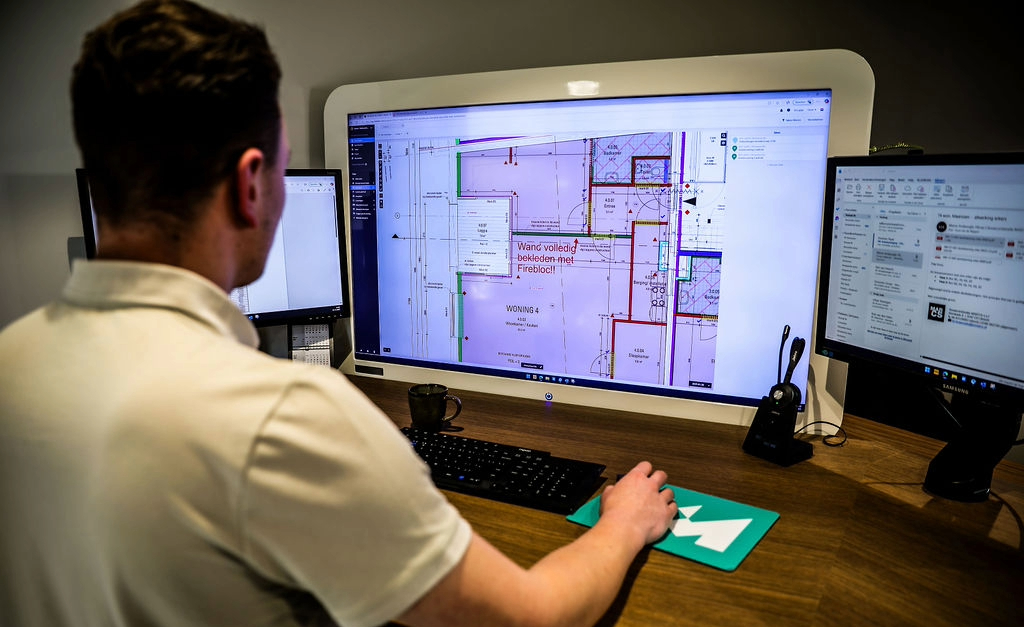
-
Accurate measurement and scaling tools
Field teams verify dimensions constantly. They might check a setback, confirm that an opening matches the plan, or calculate material quantities from the sheet. Your markup software needs linear and area measurements directly on the drawing, calibrated to the sheet's scale. Without accurate scale calibration, every measurement you take on screen is a guess.
In Fieldwire, once scale is calibrated on mobile or in bulk on web, users can take area and linear measurements directly on the plan. -
Markups that carry across plan versions
When a new revision comes in, every markup on the previous version needs to carry forward automatically. If your team has to re-annotate a sheet every time a new version is uploaded, you've created a version of the paper problem in digital form. Look for automatic drawing number detection, sheet versioning, markup carry-forward, and full version history access.
Fieldwire sheet versioning uses OCR to compare incoming plan names with existing plans and triggers version conflict warnings when new revisions are uploaded. You can copy and paste markups and tasks from one plan sheet to another in Fieldwire. For teams on Pro plans and above, sheet compare lets users overlay different versions or entirely different plans to view plan changes and identify differences. -
Real-time collaboration and shared markups
A markup that only the person who drew it can see doesn't solve the communication problem. Look for software that syncs markups across all users in real time, with control over whether annotations are visible to the full team or kept private.
Fieldwire gives users the choice between markup visibility: private markups visible only to the creator, and global markups visible to everyone on the project. Global markups sync in real time, so the master set of drawings in the cloud reflects every team member's annotations as they're made. -
Mobile and offline access for the field
A markup tool that requires a live internet connection fails in the exact environments where field documentation is most needed: basements, mechanical rooms, concrete structures, and remote sites. Look for full offline functionality with automatic sync when connectivity is restored. Cached-file viewing alone does not support field markup workflows.
Fieldwire works offline on iOS and Android, including in areas with poor connectivity or no signal. Once a project is enabled for offline access, users can view documents, complete inspections, take photos, and mark up plans without a connection. When the device reconnects, offline changes sync automatically. -
Markups that connect to tasks and photos
A markup that flags a problem but doesn't trigger a follow-up action is just a note on a drawing. Look for software that lets you create a tracked task directly from a markup, with fields for assignee, due date, priority, status, and attached photos. That connection between the annotation on the drawing and the work item in the task list turns a field observation into an accountable action.
-
Hyperlinked RFIs for complete as-built documentation
An as-built record is only as complete as its paper trail. If an RFI answer changed a detail on the drawing, that RFI needs to be hyperlinked directly to the plan location it affected, not just logged in a separate list. Without that link, whoever compiles the as-builts at closeout has to manually cross-reference RFI logs against markups to reconstruct what actually happened, and gaps get missed. Look for software that lets you hyperlink RFIs directly to a point on the drawing, so the connection carries into the final record.
In Fieldwire, plan tasks can be pinned to specific locations and annotated with notes and photos. Photos and annotations are tied to specific points on plans, timestamped, and linked to the task's location. Files like RFIs and specifications can also be attached directly to a plan.
Standalone PDF markup tools vs. construction platforms
Standalone PDF markup tools and construction-specific platforms both let you annotate drawings, but they support different workflows. PDF tools focus on the document itself. Jobsite management platforms connect drawings to tasks, people, revisions, and resolution workflows.
Standalone PDF markup tools can work well for design review and office-based coordination. For field teams, though, they can create gaps between the markup on the drawing and the follow-up work that needs to happen:
-
Version updates can stay manual. When a new revision is issued, teams may still need a separate process to make sure everyone in the field is looking at the current sheet.
-
Markups may stay separate from follow-up workflows. A markup can remain just an annotation unless it's connected to assignments, due dates, or resolution tracking.
-
Field use can be less direct. Tools centered on document workflows don't always match the speed and conditions of people marking up drawings while walking an active jobsite.
Fieldwire, a mobile-first, field-first jobsite platform built for the people doing actual work on site, bridges this gap. Plans, markups, tasks, and photos live in one place. A markup on a drawing can become a task with an assignee and a due date in seconds, without switching systems or re-entering information.

How to mark up plans in the field with Fieldwire
The workflow below covers a full field markup cycle, from uploading drawings on day one to exporting as-builts at closeout.
-
Upload your plans. Upload blueprints as a multi-page PDF or sync them directly from cloud storage. Fieldwire automatically extracts sheet information and callout hyperlinks.
-
Set your scale. If the plan has a printed scale, Fieldwire can auto-calibrate it for you. Otherwise, calibrate manually on the markup toolbar, on mobile, or in bulk on web, so all measurements reference real-world dimensions. Either way, it's worth spot-checking one known dimension before you start measuring off the plan.
-
Mark up the drawing. Use clouds, arrows, text, shapes, lines, and trade symbols to annotate the plan. Choose whether each markup is private or global.
-
Pin tasks and photos to plan locations. Create tasks directly on the drawing with assignees, due dates, priorities, and attached photos or videos.
-
Upload new revisions without losing work. Fieldwire automatically versions the sheet and carries markups forward. Sheet compare is available on Pro plans and above.
-
Export your as-builts. At project end, export as-built drawings in one click with all plan annotations plus related photos and file links.
All of this works offline. Your crew marks up plans in the field, and everything syncs automatically when they're back in range.
Fieldwire gives field teams and office staff a shared, real-time view of plans, tasks, and documentation, so everyone's working from the same page, whether they're on the third floor or in the trailer.
Frequently asked questions about plan markup software
Field teams use plan markups to flag conflicts between drawings and field conditions, document changes during construction (redlines), verify dimensions, communicate scope to crews, track punch list items, and build the as-built record for closeout.
Yes. Fieldwire runs on iOS, Android, and web, with plans optimized to display in high resolution on both smartphones and tablets. Apple Pencil support is available on iOS for writing and markup directly on plans.
In Fieldwire, yes. When a new revision is uploaded, team members can review the updated sheet and manage any needed markups and notifications based on their project settings. Previous versions and their markups remain accessible in the sheet's version history.
Yes. Fieldwire syncs markups in real time. Users can set individual markups as private, visible only to the creator, or public, visible to other users on the project.
Yes, after calibrating the scale. In Fieldwire, you calibrate the scale on the markup toolbar, on mobile or in bulk on web, then take linear and area measurements directly on the drawing.


